

Troubleshooting
How to assess an error
Section titled “How to assess an error”When the pipeline fails, follow these steps to understand what went wrong:
-
Check the terminal output
The terminal will show you which step failed. Look for lines starting with
ERRORorFAILED. This gives you a quick indication of where the problem occurred. -
Read the
.nextflow.logfileThis file contains detailed information about the pipeline execution. It’s located in your working directory (where you ran the
nextflow runcommand).Terminal window # View the last 100 lines of the logtail -n 100 .nextflow.log# Search for errors in the loggrep -i error .nextflow.log -
Check the work directory
Each process creates a subdirectory in the
work/folder. The terminal output shows you the work directory for the failed process (e.g.,work/a1/b2c3d4...).Inside this directory, you’ll find:
.command.sh- The script that was executed.command.out- Standard output from the process.command.err- Error messages from the process.command.log- Combined output and errors
Terminal window # Navigate to the failed process directorycd work/a1/b2c3d4...# Check the error outputcat .command.err -
Look for specific error messages
Sometimes the error message will be self-explanatory, and you will be able to understand the root of the issue. If not, you can look in the common errors and solutions section for some help.
Common errors and solutions
Section titled “Common errors and solutions”Here are the most frequent issues users encounter and how to fix them:
Missing or incorrect input folder
Section titled “Missing or incorrect input folder”Error message:
ERROR ~ Validation of pipeline parameters failed!
 -- Check '.nextflow.log' file for detailsThe following invalid input values have been detected:
* --input (input): the file or directory 'input' does not exist
Cause: The pipeline cannot find your input folder.
Solutions:
- Use absolute paths instead of relative paths:
/full/path/to/datanot./data - Verify your BIDS directory structure matches the inputs guide
- Check file naming follows BIDS conventions (you can use the online validator tool)
Missing age column or not formatted correctly
Section titled “Missing age column or not formatted correctly”Error message:
ERROR ~ Missing 'age' column in participants.tsvCause: The participants.tsv file doesn’t contain the required age column.
Solution:
Add an age column to your participants.tsv file. See the inputs guide for the correct format. Remember that columns must be tab-separated, not space-separated.
Docker not running
Section titled “Docker not running”Error message:
ERROR ~ Cannot connect to the Docker daemonCause: Docker Desktop is not running or Docker is not installed.
Solutions:
- Start Docker Desktop
- Wait a few seconds for Docker to fully start
- If on an HPC cluster, use
-profile apptainerinstead of-profile docker
Incorrect parameter type
Section titled “Incorrect parameter type”Error message:
Value is [string] but should be [integer]Cause: You specified your optional parameter through the command-line rather than via a params.yml file.
Solution:
Convert your CLI parameters into a params.yml file. To do so, follow the instructions on how to use a params.yml file.
Incorrect shell selection
Section titled “Incorrect shell selection”Error message:
ERROR: No b-values are below the dti_max_shell_value threshold of 1200 for subject...Cause: The pipeline’s default shell selection (b ≤ 1200 for DTI, b ≥ 700 for fODF) doesn’t match your acquisition protocol.
Solution:
Specify your shells manually using --dti_shells and --fodf_shells. See the shell selection section for details. Example:
--dti_shells "0 1500" \--fodf_shells "0 1500 3000"FreeSurfer license missing
Section titled “FreeSurfer license missing”Error message:
No license file path provided. Please specify the path using --fs_license parameter.Cause: You’re using the segmentation profile without providing a FreeSurfer license.
Solution: Get a free license from here and specify it with:
--fs_license /path/to/license.txtFailed to fetch templates
Section titled “Failed to fetch templates”Error message:
==========================================================ERROR: Failed to fetch templates from:    ${params.templates_url}
${e.message}
This typically means the compute node has no internet access.To resolve this, either:    1. Run the pipeline once from a node with internet        (templates will be cached for future runs)    2. Manually download and extract the archive:        curl -fSL ${params.templates_url} -o templates.tar.gz        tar -xzf templates.tar.gz -C ${params.templates_download_path}    3. Ask your sysadmin to place templates at:        ${params.templates_download_path}==========================================================
Cause: The pipeline attempted to download and fetch the template from your cache folder but did not succeed.
Solutions:
- If you have access to the internet, validate that the displayed
${params.templates_download_path}truly exists and you have write access. If you do not have write access, you can change the${params.templates_download_path}to a different location where you have write access. - If you do not have access to the internet, refer to step #3 in this section for a guide on how to manually download the template to cache.
Permission denied errors
Section titled “Permission denied errors”Error message:
ERROR ~ Permission denied: '/path/to/output/sub-01/...'Cause: The pipeline cannot write to the output directory.
Solutions:
- Check you have write permissions to the
--outdirlocation - Ensure the output directory is not owned by a different user
- On shared systems, verify the directory is not read-only
My subcortical structures look weird in my MultiQC report
Section titled “My subcortical structures look weird in my MultiQC report”If your subcortical segmentation look similar to this in your MultiQC report:
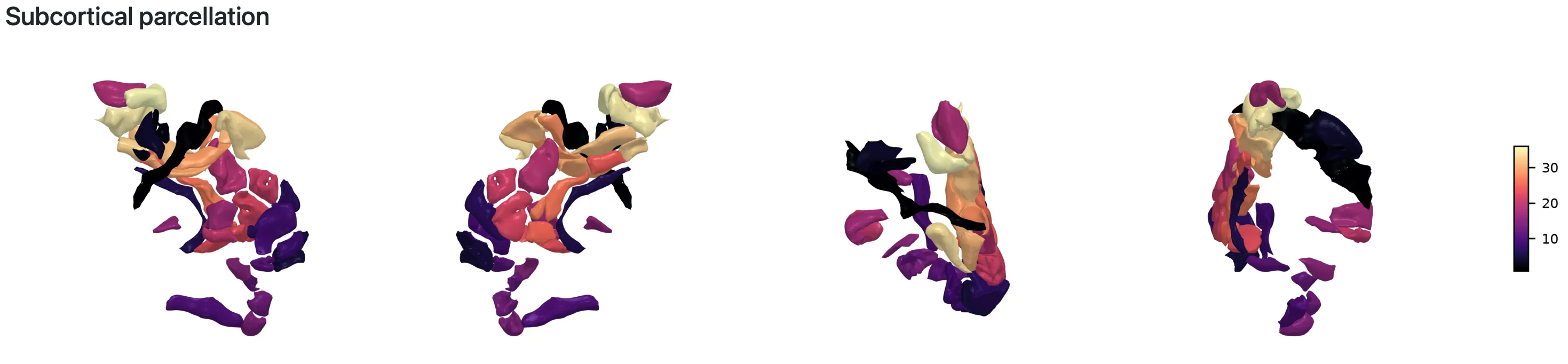
Cause: It is likely that the specified ROIs for the subcortical regions are not correct.
Solutions:
- Validate that the specified ROIs for the subcortical regions using
--subcortical_roisare correct and relaunch the pipeline with-resume. - Alternatively, directly open the
*dseg.nii.gzfile found in your output folder using a visualization tool. If your segmentation do not look as expected, then something might have went wrong in the registration process.
Still having issues?
Section titled “Still having issues?”If you’ve tried the solutions above and are still stuck:
-
Search existing issues
Check if someone else has encountered the same problem: GitHub Issues
-
Open a new issue
If you can’t find a solution, create a new issue on GitHub with:
- Your command (the full
nextflow runcommand) - Error message (from
.nextflow.logor.command.err) - Pipeline version (the
-rflag value, e.g.,0.2.2) - System information (OS, Docker/Apptainer version)
- Input data description (age range, acquisition parameters)
- Your command (the full